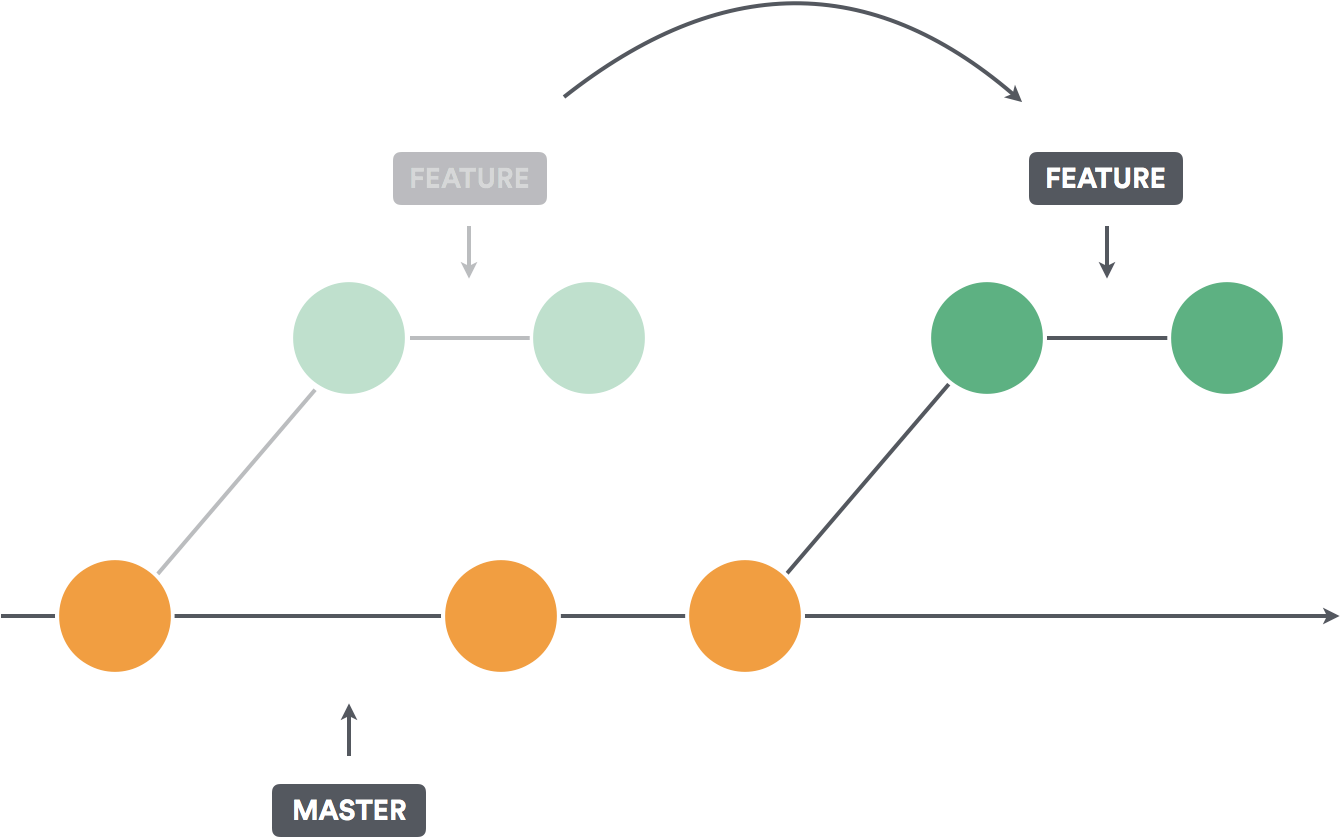
The rebase operation moves the base commit of the branch.
It takes all each commit and applies its changes on the new base commit instead of on the old one.
Usually, rebasing will be done onto a branch and not an actual commit - the new base commit will be the currently-latest commit on that branch.
When are rebases needed?
The main cause for needing to rebase is if the base branch (usually origin/main) of a Pull Request (PR) has commits added to it before the PR is merged.
When this happens, the PR branch (for example, mybranch) should be rebased on the commits that have been added to the base branch.
This is why you fetch the latest origin/main and then rebase onto it.
Pull
Before rebasing, make sure that origin/main is up-to-date and that you are on the branch you want to rebase (here: mybranch).
That is covered here.
Then we will rebase mybranch onto origin/main.
Rebase
git rebase origin/main
Click on Branch > Rebase current branch, select the branch to rebase onto, and click Start rebase.
Open Git > Rebase from the top menu, and select origin/main (the new base).
Force-Push
After rebasing, we will need to force-push - the commit history of our branch changed, so GitHub will reject a normal push.
!!! Be careful with force-pushing !!!
!!! It can delete your work forever !!!
git push --force-with-lease
GitHub Desktop does not support force-pushing. Use the terminal/command-line or IntelliJ.
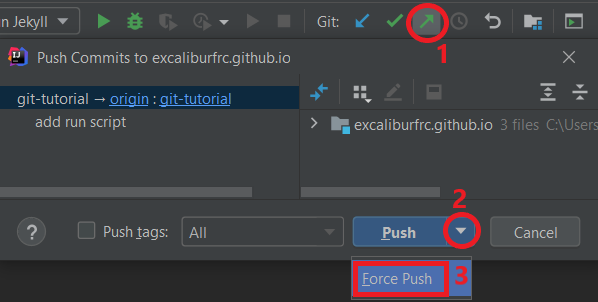
As with regular pushing, click on the green arrow on the top-left corner of the screen to open the push dialog.
Unlike with regular pushing, click on the triangle next to Push and click on Force Push.